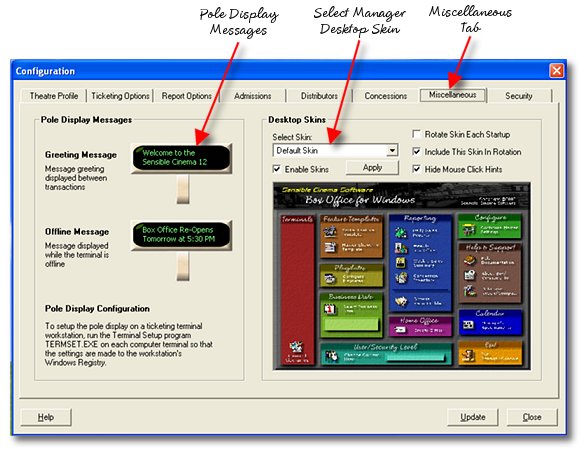
The Miscellaneous page contains the setup for your pole display messages and allows you to select and set desktop skins for your manager's screen.
Frequently Asked Questions:
What Goes Here? (Fields you may not know what to enter in)
POLE DISPLAY MESSAGES:
Greeting Message - The Greeting message is displayed outside of a sale while your terminal is logged in. This is a global settting and affects all terminals as they log in and out. The actual hardware configuration for your pole display is done on each individual workstation using the Terminal Setup program. You can actually select the message text line by line in the simulated pole display image and edit the text.
Offline Message - The Offline message is displayed outside of a sale while your terminal is logged out. This is a global settting and affects all terminals as they log in and out. The actual hardware configuration for your pole display is done on each individual workstation using the Terminal Setup program. You can actually select the message text line by line in the simulated pole display image and edit the text.
MANAGER'S DESKTOP SKINS:
Enable Skins (Checkbox) - Turns on skins and allows you to select an image skin for your manager screen desktop.
Hide Mouse Click Hints (Checkbox) - Turns off the annoying messages that follow you around when using the manager's screen with a skin. By default this is unchecked so that you learn your way around the screens, once you are familar with how the screen works you can get rid of those hints by checking this checkbox.
Include Skin in Rotation (Checkbox) - When you have the "Rotate Skin Each Startup" checkbox checked, this checkbox tells the rotator whether to include this particular skin in its rotation. You will have to select each skin individually to set this checkbox the way you want it.
Rotate Skin Each Startup (Checkbox) - Changes the skin automatically to the next skin each time the program is started. Individual skins can be removed from the rotation and skipped by deselecting the "Include This Skin In Rotation" checkbox for the skins you want eliminated from rotation.
Apply (Command Button) - Changes the skin or if disabling skins, removes the skin and reverts to the unskinned manager's screen.
Can
I edit a skin?
Yes you can
edit an existing design by editing it's image file found in the
program's skin folder. Make a backup of the original file first and
be sure to preserve the filename for the edited version so that the
system finds the skin. Skins are saved in JPG format.
Can
I create my own skin design?
There are two
issues to creating a skin. One, the design and two the programming of
mouse clicks. If enough interest is generated by the capability of
skins, we may release a freeware skin designer. Presently, there is
no easy way to design a skin and program mouse clicks. The screen
positions for the hot spots (click areas) can be revealed by setting
the register key below to "Yes": You would need a copy of
Microsoft Access to edit the database table "SKINS" in the
bp_settings.mdb file found in the Config folder. Exercise care if
doing this. The easiest way to create a skin would be to edit an
existing design and keep the buttons in the same place.
HKEY_CURRENT_USER\Software\VB and VBA Program Settings\Sensible Cinema Box Office For Windows\Default Settings\Debug Skins
Can
I delete a skin file?
You can
remove a file from the skins folder, but an error will be raised if
the missing skin is selected from the drop list.